
How to do a full and partial refund at POS terminal
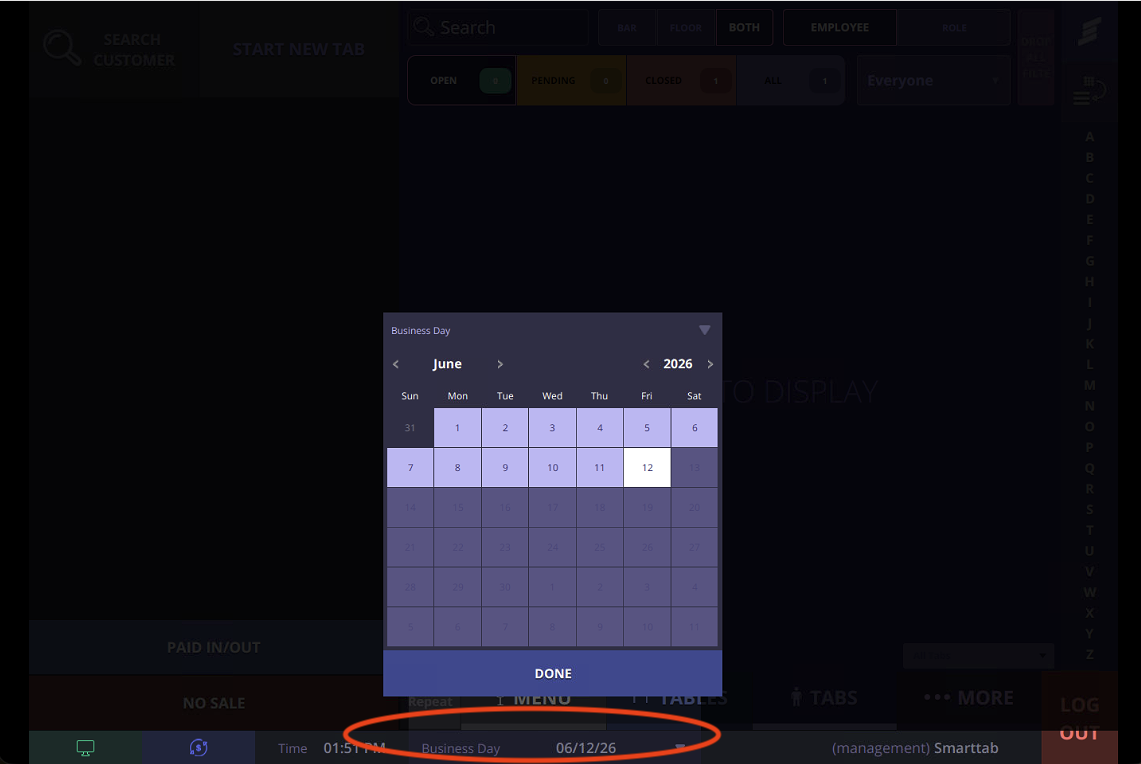
Log in at a POS Terminal and choose the BUSINESS DAY of the transaction.
Full Refund
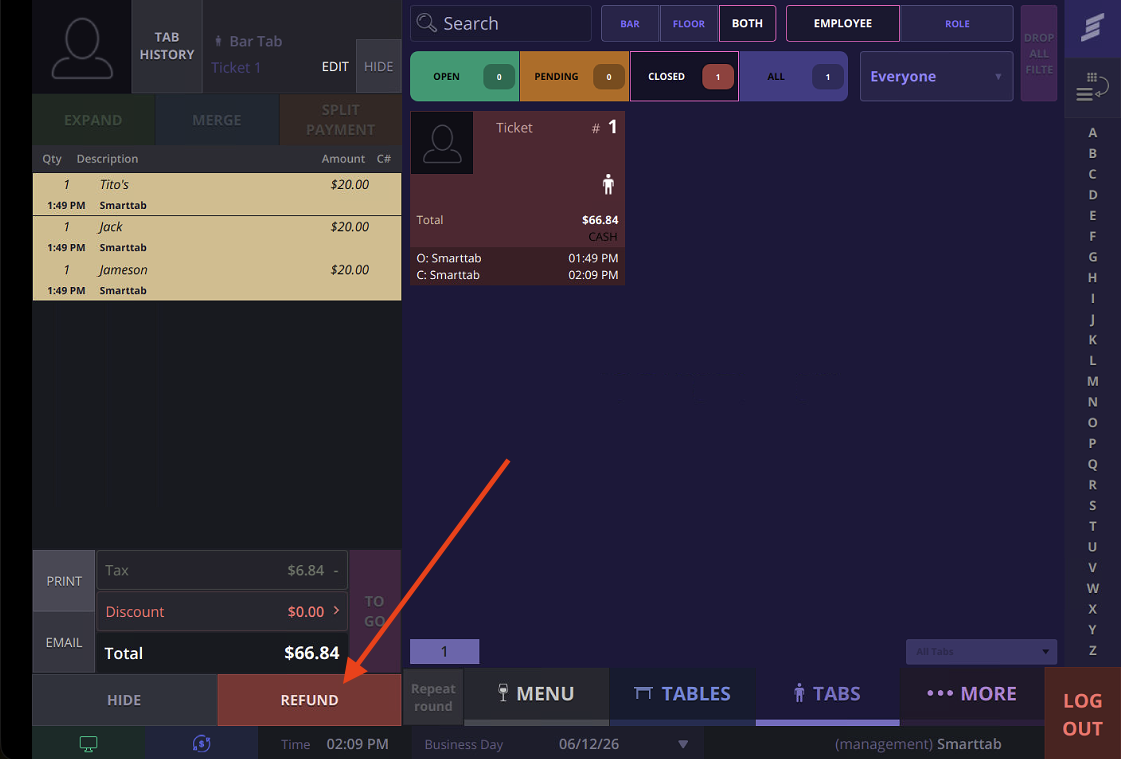
Go to the TABS screen select the CLOSED tab you are looking to refund.
Tap the REFUND button to refund the tab in full.
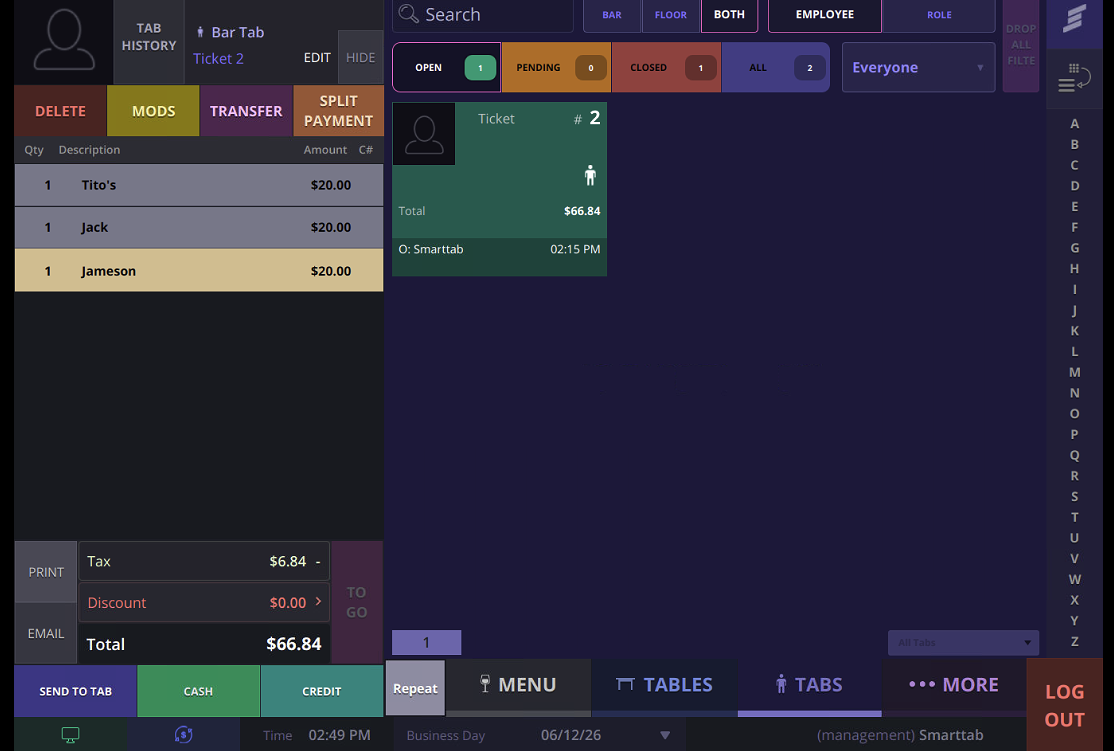
The tab is now transferred to an OPEN tab. From here you can delete individual items or add new ones. You can also delete/comp/void every item and close the tab if the tab does not require adjustments.
Partial Refund
Go to the TABS screen and double tap the tab you are looking to refund.
Click PARTIAL REFUND 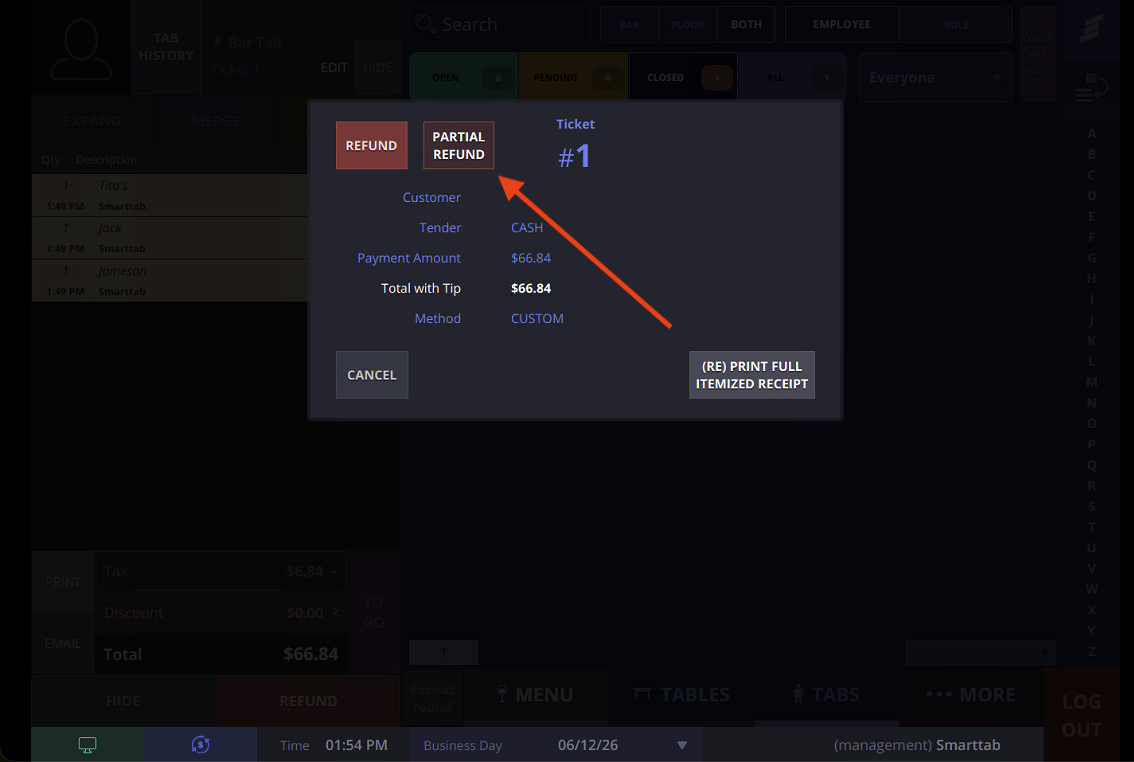
Enter the amount you would like to partially refund and tap PROCEED PARTIAL REFUND
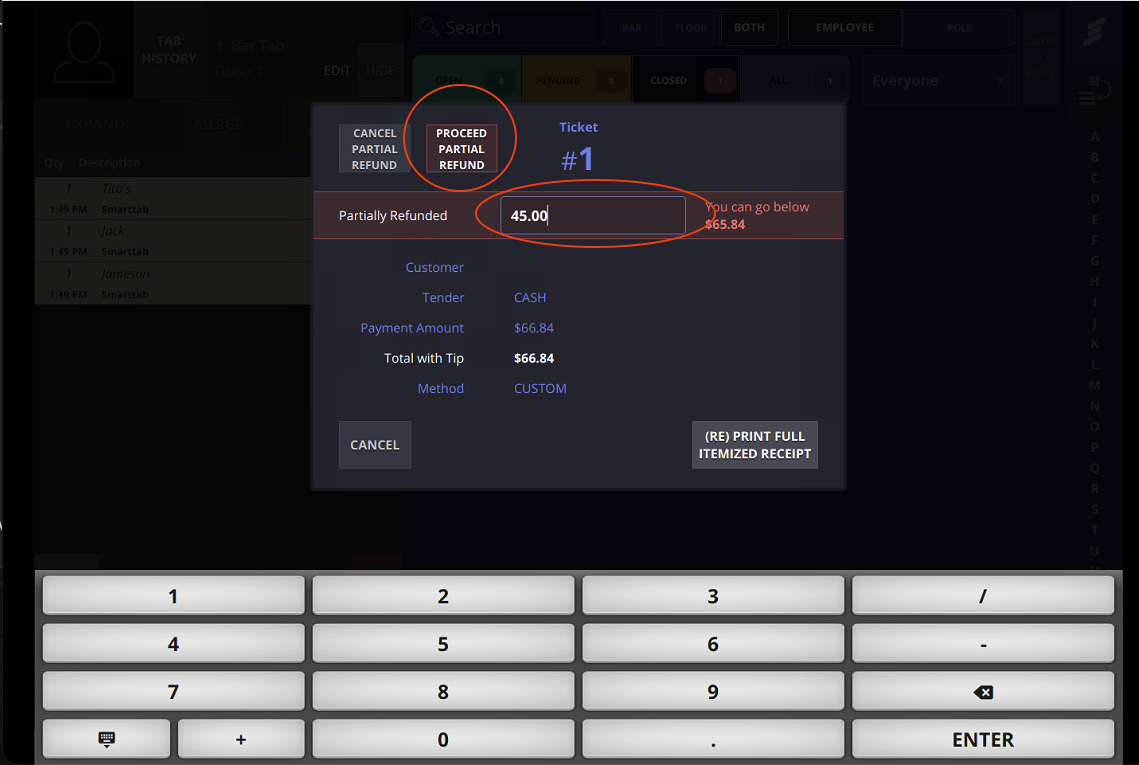
You would use function in situations where the guests was over charged and you owe them the difference. After you proceed with the refund, the tab will remain closed and you will not be able to edit it. If you need to adjust the tab for inventory reasons, you will need to us the full refund method.