
This document will provide you with steps, as well as step-by-step pictures, for creating backend access for another employee.
First, ensure that you have the employee showing in the list on the Staff page.
If you have other Employees set up with the same level of backend access, please skip to The Third image.
Navigate to the staff page in the BOH
Then select the Backend Roles Option highlighted below
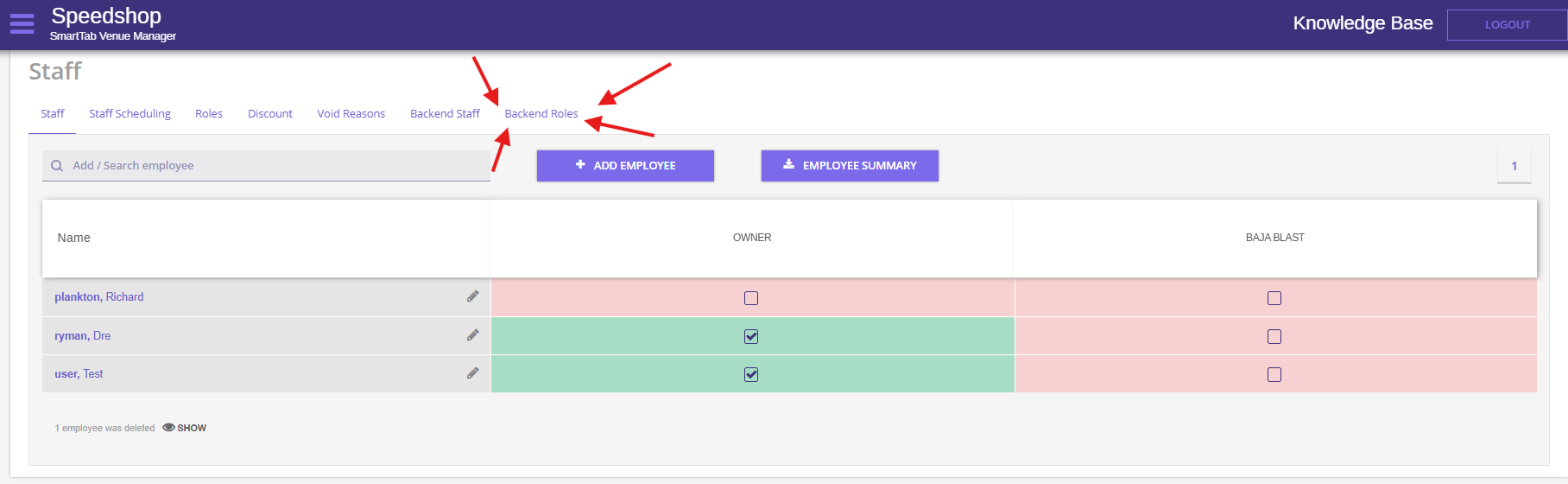
After you are in the Backend roles, you will ensure you have one setup with the level of permissions you would like the individual to have
Once that has been confirmed, as well as the staff member having an account in the staff page
You will then click on the name of the staff member back in the staff list
See below image
Confirm you have an email entered on file for the employee who is receiving BOH access.
Once confirmed, scroll down the page and look for the Backend Role Drop-down menu, and assign the desired role.
Once this is completed, hit save at the very bottom of the account page
The Employee will need to navigate to the URL for the venue, type in the email on file, and hit Forgot password.
An email will be sent to the employee
Have them follow the instructions to reset the password
Have them log in with the new password and the email on file for the username.